Output
Steady colors, steps or fine-line patterns
Inspect solid red, green, blue, white and black screens for stuck or dead pixels.
Dead Pixel Test · At a glance
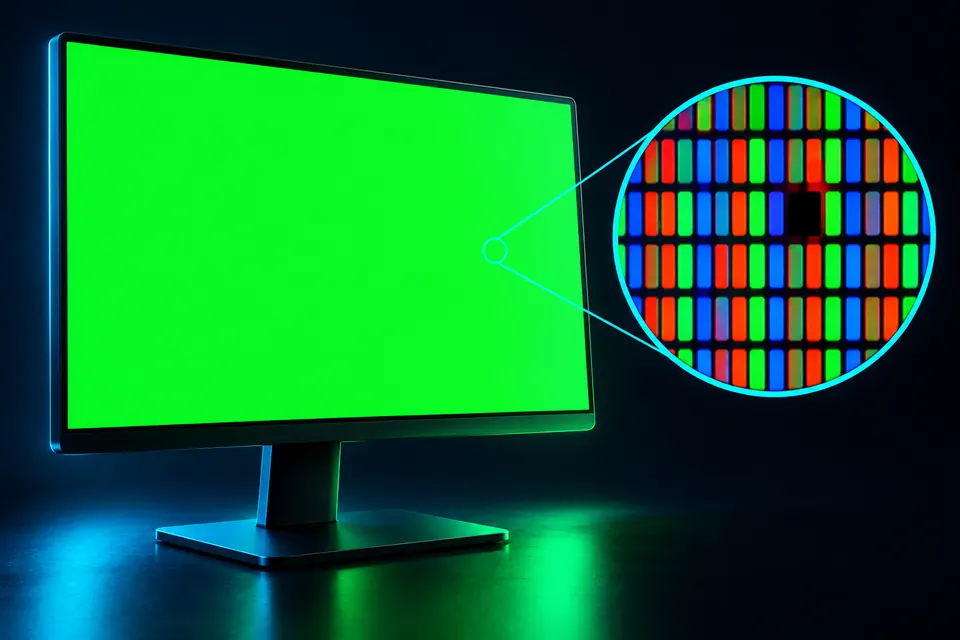
Quick answer: Inspect solid red, green, blue, white and black screens for stuck or dead pixels. A dead pixel usually stays dark on bright fields; a stuck subpixel can remain colored.
The test loads when you open it. Device access is requested only after you choose to start.
Detailed guide
Steady colors, steps or fine-line patterns
Manual visual inspection
Native resolution; fullscreen support
Runs on your device; no tool-result upload
These are visual inspection patterns. The page cannot read individual panel pixels, measure nits or contrast ratio, diagnose a panel automatically, or repair dead pixels.
A dead pixel usually stays dark on bright fields; a stuck subpixel can remain colored. Dust can resemble either until the surface is cleaned.
A dead pixel typically stays dark on bright fields, while a stuck subpixel may stay colored when the surrounding image changes. Dust and marks can look similar, so clean the screen using the manufacturer’s method. Inspect red, green and blue separately, then white and black. Use fullscreen to include the edges. These are steady inspection patterns; a physically dead pixel cannot be repaired by a web page.
Use native resolution and ordinary viewing distance, then inspect suspect points closely. Compare the same location on red, green, blue, black and white.
Use native screen resolution and 100% browser zoom for fine patterns. Disable adaptive brightness for comparisons. PWM inspection needs an external camera; banding can also be a camera artifact.
No. The tool displays steady inspection fields. It cannot physically repair a failed pixel, and a web page cannot automatically scan the panel for defects.
Choose a pattern and open fullscreen. Inspect the entire panel, then click to cycle patterns. Press Escape to leave fullscreen.
Use red, green and blue to inspect individual color behavior, white for dark points and black for bright or colored points. Inspect the same suspect location across all fields before describing the symptom.
Clean the screen using the manufacturer method and compare the spot under different fields and viewing angles. A mark on the surface can resemble a dark pixel. Do not press hard on the panel to investigate it.
Fullscreen exposes corners and edges otherwise hidden by browser chrome. Native resolution and ordinary zoom make fine pixel inspection easier; scaled images can blur or hide individual source-pixel transitions.
No. Open the interactive tool above in a modern browser. The instructions and explanations are available even with JavaScript disabled; running a test needs JavaScript.